 I love experimenting with all sorts of single board computers (SBCs) and systems on modules (SoMs) - like the Raspberry Pi CM4 or Pine64 SOQuartz. This extends even to needing to make a network-attached storage (NAS). One of the requirements is the ability to attached a bunch of disks to a tiny computer. The easiest way to accomplish this is using a PCIe SATA controller. To use this, you need a PCIe lane exposed. Luckily, there are a number of [system on modules](../posts/raspberry-pi-cm4-and-pin-compatible-modules.html) with PCIe support. There is also Pine64 single board computers with an exposed PCIe lanes. These are the Quartz64 model A as well as the ROCKPro64. The former does not have the performance capabilities that the latter does, as such, we will be using the ROCKPro64.
My requirements for a NAS are bare-bones. I want [network file system](https://en.wikipedia.org/wiki/Network_File_System) support; and secondarily, Windows' SMB support via the open source project [Samba](https://www.samba.org/). Samba is of secondary importance because the primary use case for this particular NAS is providing additional disk space to other SBCs that are running some flavor of Linux or BSD (like [NetBSD](https://www.netbsd.org/)).
When the [Turing Pi 2](https://turingpi.com/turing-pi-v2-is-here/) was being promoted on [Kickstarter](https://www.kickstarter.com/projects/turingpi/turing-pi-cluster-board), I had pledged to the project and then purchased a [2U shallow depth rack ITX server case](https://amzn.to/3X9edvw). The project has been moving along but is taking longer than I had anticipated. In the mean time, I decided to re-purpose the server case and use it for a simple NAS.
I purchased four [Seagate IronWolf 10TB drives](https://amzn.to/3Ivf4T2). These are spinning metal drives not fancy NVME drives. NVME is too cost prohibitive and would ultimately not be performative; e.g. the bottleneck would be the ROCKPro64.
I love experimenting with all sorts of single board computers (SBCs) and systems on modules (SoMs) - like the Raspberry Pi CM4 or Pine64 SOQuartz. This extends even to needing to make a network-attached storage (NAS). One of the requirements is the ability to attached a bunch of disks to a tiny computer. The easiest way to accomplish this is using a PCIe SATA controller. To use this, you need a PCIe lane exposed. Luckily, there are a number of [system on modules](../posts/raspberry-pi-cm4-and-pin-compatible-modules.html) with PCIe support. There is also Pine64 single board computers with an exposed PCIe lanes. These are the Quartz64 model A as well as the ROCKPro64. The former does not have the performance capabilities that the latter does, as such, we will be using the ROCKPro64.
My requirements for a NAS are bare-bones. I want [network file system](https://en.wikipedia.org/wiki/Network_File_System) support; and secondarily, Windows' SMB support via the open source project [Samba](https://www.samba.org/). Samba is of secondary importance because the primary use case for this particular NAS is providing additional disk space to other SBCs that are running some flavor of Linux or BSD (like [NetBSD](https://www.netbsd.org/)).
When the [Turing Pi 2](https://turingpi.com/turing-pi-v2-is-here/) was being promoted on [Kickstarter](https://www.kickstarter.com/projects/turingpi/turing-pi-cluster-board), I had pledged to the project and then purchased a [2U shallow depth rack ITX server case](https://amzn.to/3X9edvw). The project has been moving along but is taking longer than I had anticipated. In the mean time, I decided to re-purpose the server case and use it for a simple NAS.
I purchased four [Seagate IronWolf 10TB drives](https://amzn.to/3Ivf4T2). These are spinning metal drives not fancy NVME drives. NVME is too cost prohibitive and would ultimately not be performative; e.g. the bottleneck would be the ROCKPro64.
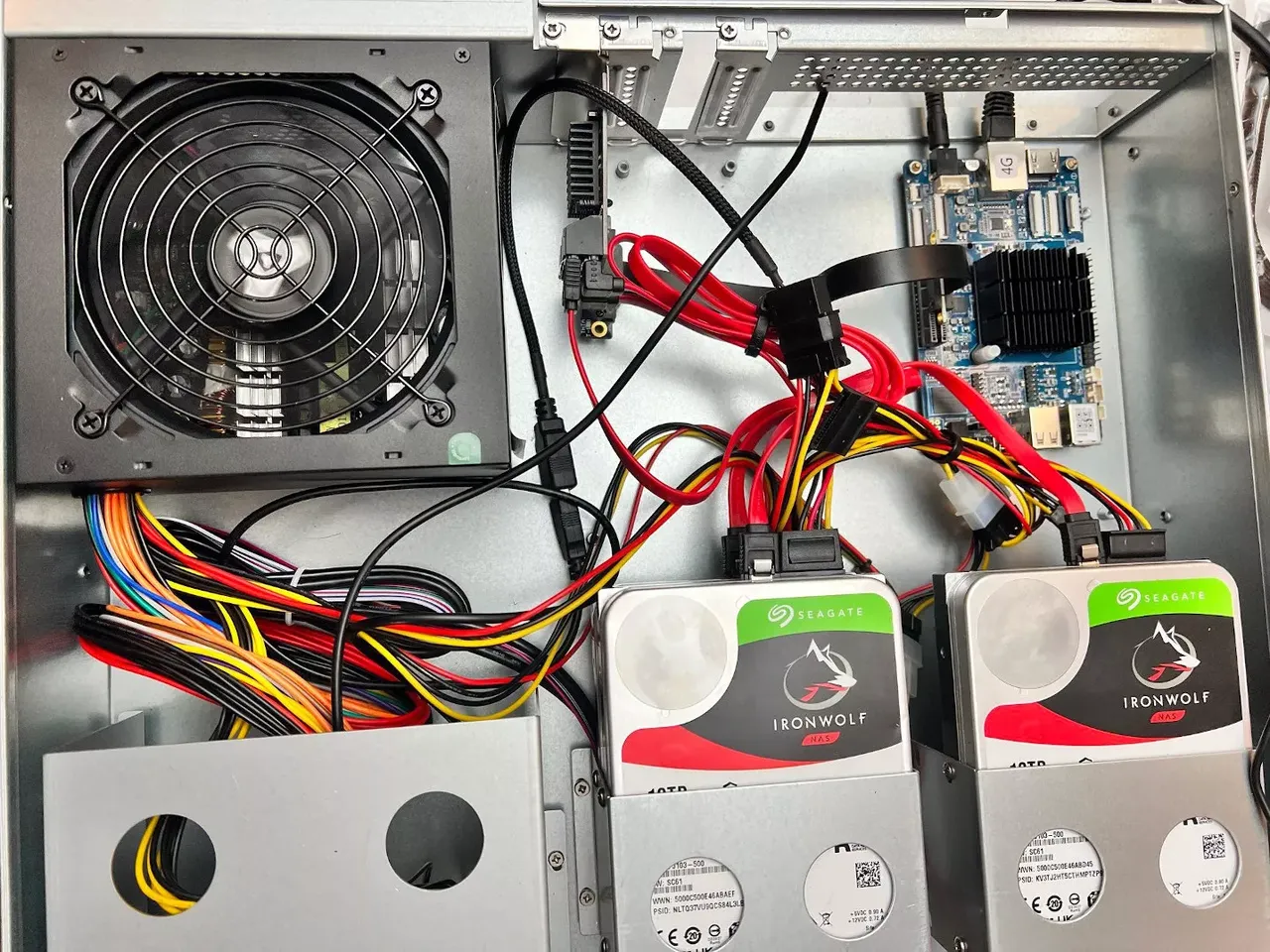
 One of the four drives turned out to be a dud; there are only three in the above picture. The original goal was have 30TB of RAID5 -- 30TB of storage with 10TB for parity. But, because I did not want to spend much more on this project, I opted to return the broken drive and settle for 20TB of storage with 10TB of parity.
The setup is fairly simple. The 2U case, three 10TB drives, a ROCKPro64 4GB single board computer, and a [450W ATX power supply](https://amzn.to/3Ivf4T2).
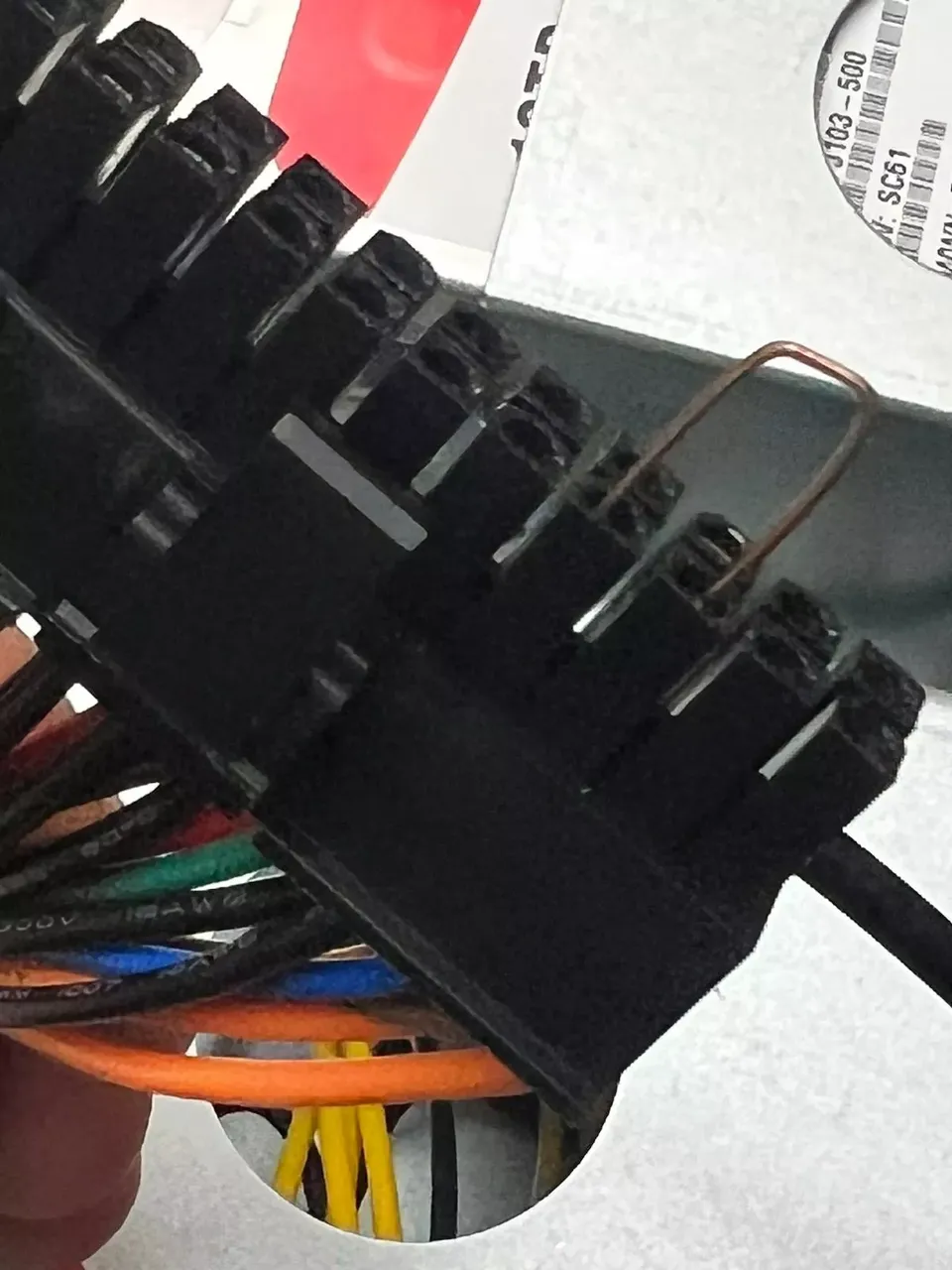
Here's a pro-tip on using a power supply without a motherboard: while holding the power connector with the latching tab towards you, use a paper clip, or in my case, a piece of MIG welding wire, to short out the third and fourth connectors. This probably will void the warranty if something happens to the power supply.
Here is a bit of information on the [tech specs](https://github.com/ajokela/hwinfo/tree/main/single-board-computers/rockpro64) of the ROCKPro64.
The drive setup is straight forward. Three drives, running in a RAID5 configuration producing a total of 20TB of usable storage. Setting up software RAID under Linux is simple. I used [this](https://www.digitalocean.com/community/tutorials/how-to-create-raid-arrays-with-mdadm-on-ubuntu-22-04) as a foundation for setting up software RAID. We are using software RAID because hardware RAID controllers are expensive and have limited support with single board computers. The [one that appears to work](https://pipci.jeffgeerling.com/#sata-cards-and-storage), is about [$600](https://amzn.to/3ZlbP6E). It is not that I would not be against spending that much on a shiny new controller, it is that I do not feel there would be a noticeable benefit over a pure software solution. I will go into performance characteristics of the software RAID configuration later in this article.
## How To Create RAID5 Arrays with mdadm
[RAID5](https://en.wikipedia.org/wiki/Standard_RAID_levels#RAID_5) has a requirement of at least three drives. As previously mentioned, this gives you `n - 1` drives of storage with one drive's worth of storage for parity. This parity is not stored on the single drive, it is stored across all of the drives but it is equal in total to the size of one drive. There is the assumption that all drives are of equal size.
Get a pretty list of all the available disk:
```bash
$ lsblk -o NAME,SIZE,FSTYPE,TYPE,MOUNTPOINT
NAME SIZE FSTYPE TYPE MOUNTPOINT
sda 9.1T disk
sdb 9.1T disk
sdc 9.1T disk
mtdblock0 16M disk
mmcblk2 58.2G disk
└─mmcblk2p1 57.6G ext4 part /
mmcblk2boot0 4M disk
mmcblk2boot1 4M disk
```
You will see we have three, "10TB" drives.
To create a RAID 5 array with the three 9.1T disks, pass them into the `mdadm --create` command. We will have to specify the device name you wish to create, the RAID level, and the number of devices. We will be naming the device `/dev/md0`, and include the disks that will build the array:
```bash
sudo mdadm --create --verbose /dev/md0 --level=5 --raid-devices=3 /dev/sda /dev/sdb /dev/sdc
```
This will start to configure the array. `mdam` uses the recovery process to build the array. This process can and will take some time to complete, but the array can be used during this time. You can monitor the progress of the mirroring by checking the `/proc/mdstat` file:
```bash
$ cat /proc/mdstat
Personalities : [raid6] [raid5] [raid4] [linear] [multipath] [raid0] [raid1] [raid10]
md0 : active raid5 sda[0] sdc[3] sdb[1]
19532609536 blocks super 1.2 level 5, 512k chunk, algorithm 2 [3/3] [UUU]
bitmap: 0/73 pages [0KB], 65536KB chunk
unused devices:
One of the four drives turned out to be a dud; there are only three in the above picture. The original goal was have 30TB of RAID5 -- 30TB of storage with 10TB for parity. But, because I did not want to spend much more on this project, I opted to return the broken drive and settle for 20TB of storage with 10TB of parity.
The setup is fairly simple. The 2U case, three 10TB drives, a ROCKPro64 4GB single board computer, and a [450W ATX power supply](https://amzn.to/3Ivf4T2).
Here's a pro-tip on using a power supply without a motherboard: while holding the power connector with the latching tab towards you, use a paper clip, or in my case, a piece of MIG welding wire, to short out the third and fourth connectors. This probably will void the warranty if something happens to the power supply.
Here is a bit of information on the [tech specs](https://github.com/ajokela/hwinfo/tree/main/single-board-computers/rockpro64) of the ROCKPro64.
The drive setup is straight forward. Three drives, running in a RAID5 configuration producing a total of 20TB of usable storage. Setting up software RAID under Linux is simple. I used [this](https://www.digitalocean.com/community/tutorials/how-to-create-raid-arrays-with-mdadm-on-ubuntu-22-04) as a foundation for setting up software RAID. We are using software RAID because hardware RAID controllers are expensive and have limited support with single board computers. The [one that appears to work](https://pipci.jeffgeerling.com/#sata-cards-and-storage), is about [$600](https://amzn.to/3ZlbP6E). It is not that I would not be against spending that much on a shiny new controller, it is that I do not feel there would be a noticeable benefit over a pure software solution. I will go into performance characteristics of the software RAID configuration later in this article.
## How To Create RAID5 Arrays with mdadm
[RAID5](https://en.wikipedia.org/wiki/Standard_RAID_levels#RAID_5) has a requirement of at least three drives. As previously mentioned, this gives you `n - 1` drives of storage with one drive's worth of storage for parity. This parity is not stored on the single drive, it is stored across all of the drives but it is equal in total to the size of one drive. There is the assumption that all drives are of equal size.
Get a pretty list of all the available disk:
```bash
$ lsblk -o NAME,SIZE,FSTYPE,TYPE,MOUNTPOINT
NAME SIZE FSTYPE TYPE MOUNTPOINT
sda 9.1T disk
sdb 9.1T disk
sdc 9.1T disk
mtdblock0 16M disk
mmcblk2 58.2G disk
└─mmcblk2p1 57.6G ext4 part /
mmcblk2boot0 4M disk
mmcblk2boot1 4M disk
```
You will see we have three, "10TB" drives.
To create a RAID 5 array with the three 9.1T disks, pass them into the `mdadm --create` command. We will have to specify the device name you wish to create, the RAID level, and the number of devices. We will be naming the device `/dev/md0`, and include the disks that will build the array:
```bash
sudo mdadm --create --verbose /dev/md0 --level=5 --raid-devices=3 /dev/sda /dev/sdb /dev/sdc
```
This will start to configure the array. `mdam` uses the recovery process to build the array. This process can and will take some time to complete, but the array can be used during this time. You can monitor the progress of the mirroring by checking the `/proc/mdstat` file:
```bash
$ cat /proc/mdstat
Personalities : [raid6] [raid5] [raid4] [linear] [multipath] [raid0] [raid1] [raid10]
md0 : active raid5 sda[0] sdc[3] sdb[1]
19532609536 blocks super 1.2 level 5, 512k chunk, algorithm 2 [3/3] [UUU]
bitmap: 0/73 pages [0KB], 65536KB chunk
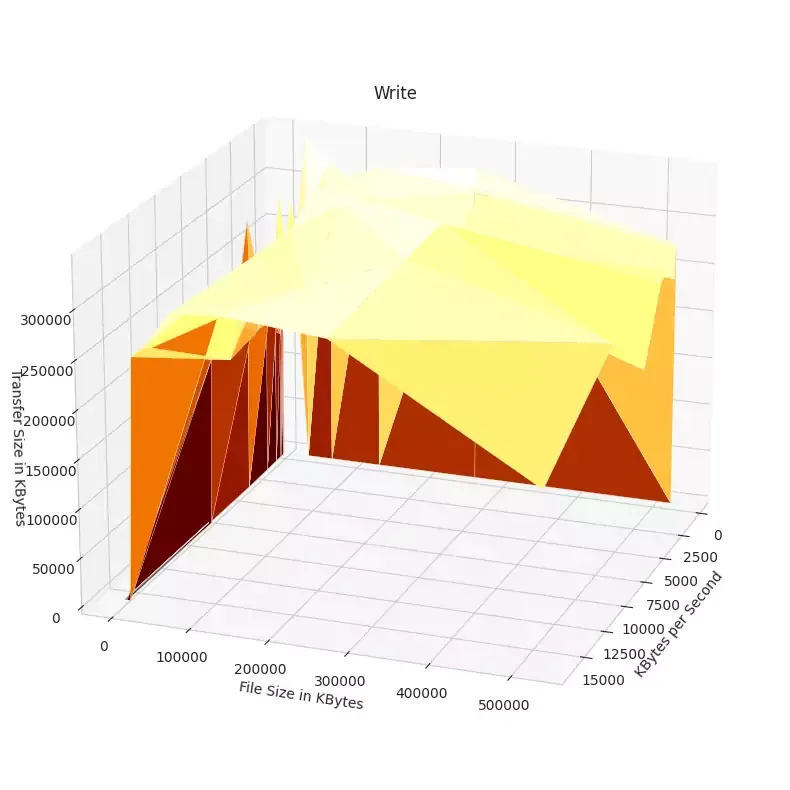
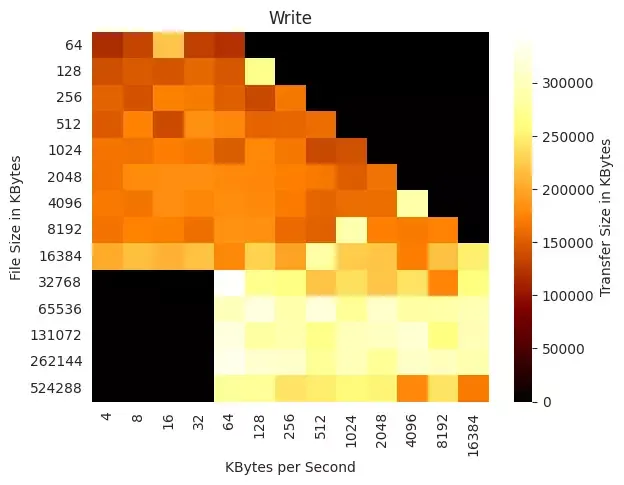
unused devices: Writer Report 4 8 16 32 64 128 256 512 1024 2048 4096 8192 16384 64 703068 407457 653436 528618 566551 128 504196 306992 433727 962469 498114 757430 256 805021 475990 850282 594276 571198 582035 733527 512 660600 573916 439445 1319250 549959 645703 926116 591299 1024 1102176 1053512 610617 704230 902151 1326505 1011817 1161176 919928 2048 608964 1398145 1329751 822175 1140942 841094 1332432 1308682 1082427 1311879 4096 1066886 1304093 1168634 946820 1467135 881253 1360802 931521 1047309 1018923 1047054 8192 955344 1295186 1329052 1354035 1019915 1192806 1373082 1197294 1053501 866339 1116235 1368760 16384 1471798 1219970 2029709 1957942 2031269 1533341 1570127 1494752 1873291 1370365 1761324 1647601 1761143 32768 0 0 0 0 1948388 1734381 1389173 1315295 1848047 1916465 1944804 1646551 1632605 65536 0 0 0 0 1938246 1933611 1638071 1910004 1885763 1876212 1844374 1721776 1578535 131072 0 0 0 0 1969167 1962833 1921089 1757021 1644607 1780142 1869709 1566404 1356993 262144 0 0 0 0 2025197 2037129 2036955 1747487 1961757 1954913 1934085 1718841 1596327 524288 0 0 0 0 2041397 2080623 2087150 2049656 2007421 2005253 1930617 1876761 18130782. I used a combination of using Excel (using LibreOffice Calc would work, too) and a [Jupyter Notebook](https://jupyter.org/). Excel was used to pull out each report's block and then save each to a CSV file; the [Notebook](/pages/rockpro64-armbian-raid5-iozone.html) contains python code for reading in CSVs, and using `matplotlib` to produce visualizations. ## Select Visualizations 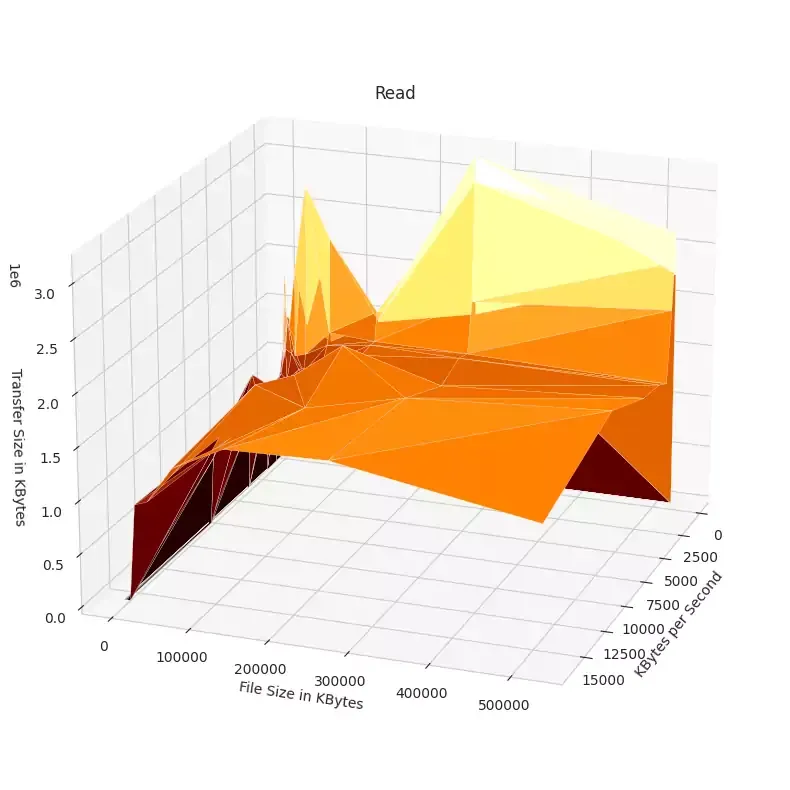 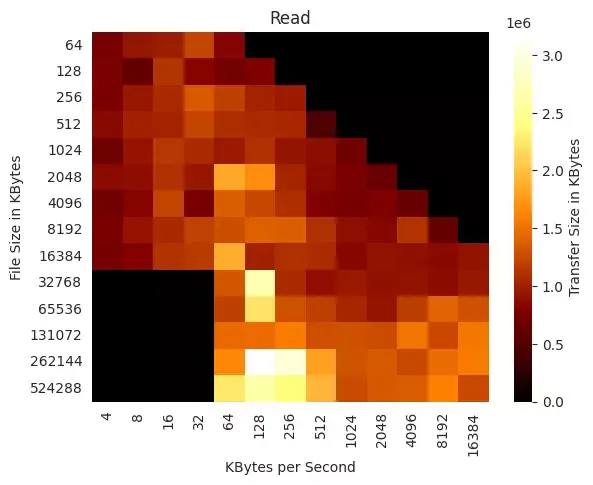 There actually is relatively consistent reads across the file sizes and transfer sizes.